Zones, sectors and splitters
Zones, sectors and splitters describe your outside network: where a customer is, and which box the drop cable plugs into. They are records in the panel only. Creating, changing or removing them changes nothing on the OLT and never interrupts a customer.
What each record is for
| Record | Use it for | Fields |
|---|---|---|
| Zone | Grouping ONUs by place: a town, a neighborhood or a village. Zones are a display separation only. | Name |
| Sector | Dividing your network another way, for example by branch, reseller or region. Both splitters and ONUs can belong to a sector. | Name, Comment |
| Splitter | The box (ODB) that customer drop cables plug into. With its number of ports and its location you can track free ports and see it on the map. | Name, Zone, Sector, Ports, Latitude, Longitude |
All three appear as filters on the Configured list and in reports, so good labels make it easy to answer questions like "which customers are on this box".
Create zones, sectors and splitters
- Open Settings, then Zones, Sectors or Splitters.
- Press the green button: Add Zone, Add sector or Add Splitter.
- Type a Name. Each name can be used once in its list.
- For a splitter, also set Ports, the number of customer ports on the box. The default is 16 and the range is 1 to 64. Choose its Zone and Sector if you use them. To show it on the map, type Latitude and Longitude in degrees, for example
-1.2921and36.8219. - Press Save. You should see Zone saved., Sector saved. or Splitter saved. and the new row in the list.
To edit a record, click its name in the list. To find one, type in Search and press Enter. Click a column heading to sort.
The lists show how each record is used:
- Zones: the ONUs column counts the ONUs in the zone. Click the number to open them in the Configured list.
- Sectors: Splitters and ONUs count what belongs to the sector.
- Splitters: Ports used shows, for example, 12 of 16. A red Full badge appears when every port is taken. Location shows the coordinates if you set them.
Import, export and delete
- Export downloads the list as a CSV file.
- Import loads a CSV file whose first row has the same column names as the form. The import window lists the names. For splitters, the zone and sector are written by name. This is the fast way to load many splitters at once.
- The red trash button removes one record. If ONUs use it, the confirm box tells you how many ONUs lose the label. The ONUs keep working.
- Delete unused zones (or sectors, or splitters) removes every record that nothing uses.
Assign ONUs
There are four ways to give an ONU its zone, sector and splitter.
- When you authorize: choose Zone, Sector, Splitter and Splitter port on the form. See Authorize a new ONU.
- With a preset: a preset can carry a zone and a sector. See Presets and auto actions.
- On the ONU page: click Update details, change the fields and press Save. See The ONU page.
- For many ONUs: open Reports, Export, download the file, fill in the Zone, Sector, Splitter and Splitter port columns, then load it under Reports, Import. ONUs are matched by Serial number. Zones, sectors and splitters are written by name and must exist already. An import changes only details kept in the panel, never the OLT.
The Splitter port is the number of the port on the box that the customer's drop uses, from 1 to 64. Set it for every ONU. The reports below depend on it.
The Splitter check report
Open Reports, Splitter check. The report finds ONUs and splitters whose records do not fit together.
The two counters at the top are:
- ONUs without a Splitter: no splitter is assigned.
- ONUs more than 300 m from their Splitter: both the ONU and the splitter have coordinates, and the straight line between them is longer than the limit. This usually means the ONU is assigned to the wrong box, or one of the two locations is wrong.
Change the limit in Far above (m). Use Reason to show only Without a splitter or only Far from the splitter, and OLT, Board, Port, Zone and Sector to narrow the list. The table shows up to 1000 ONUs with their name, serial, OLT, position, zone, splitter and Distance to the Splitter (m). Click a name to open the ONU and correct it. Export to CSV downloads the list.
Under it, the table Splitters with problems appears when a splitter has one of these problems:
- More ONUs than ports, for example 18 ONUs on a 16 port splitter.
- An ONU on a port number higher than the number of ports of the splitter.
- One splitter port given to two or more ONUs. The names are listed.
- ONUs with no splitter port set.
- ONUs of the same splitter connected to different PON ports.
Click the splitter name to list its ONUs.
The PON occupancy report
Open Reports, PON occupancy. It lists every PON port of every GPON board, fullest first, so you can see where there is room before you plan new customers.
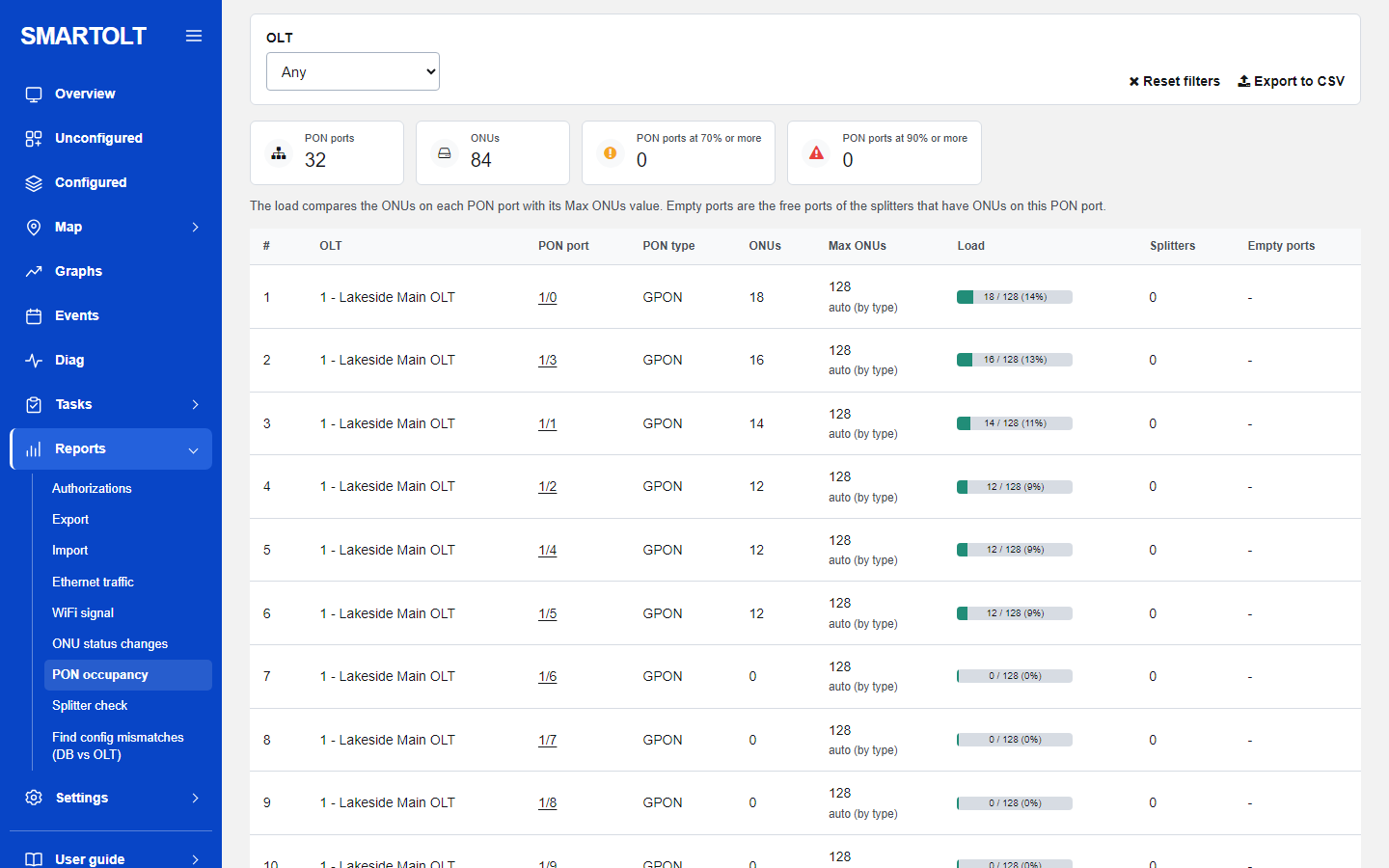
| Column | Meaning |
|---|---|
| PON port | Board and port. Click it to list the ONUs on that port. |
| ONUs | How many ONUs are authorized on the port. |
| Max ONUs | The limit used for the load. It is 128 for a GPON port. |
| Load | ONUs compared with Max ONUs, as a bar. The bar turns orange at 70% and red at 90%. |
| Splitters | How many different splitters the ONUs on this port are assigned to. |
| Empty ports | The free ports of those splitters added together. A dash means no ONU on the port has a splitter. |
The four counters above the table show the number of PON ports, the number of ONUs, and how many ports are at 70% or more and at 90% or more. Filter by OLT, and use Export to CSV to download the table.
Empty ports counts only splitters that already have at least one ONU on that PON port. A new, empty splitter is not counted until its first ONU is assigned.
For the other reports, see Graphs and reports. To see splitters and their free ports on a map, see Maps.
Still stuck? Write to us and include your site name. No panel yet? Create one for free.