Authorize a new ONU
An ONU that is plugged into your fiber but not yet authorized passes no traffic. The Unconfigured page lists these ONUs. On Huawei MA5600T series OLTs (MA5683T, MA5680T, MA5608T), you can authorize each one with its VLAN, profiles and customer details. Authorization is unavailable on read-only preview drivers.
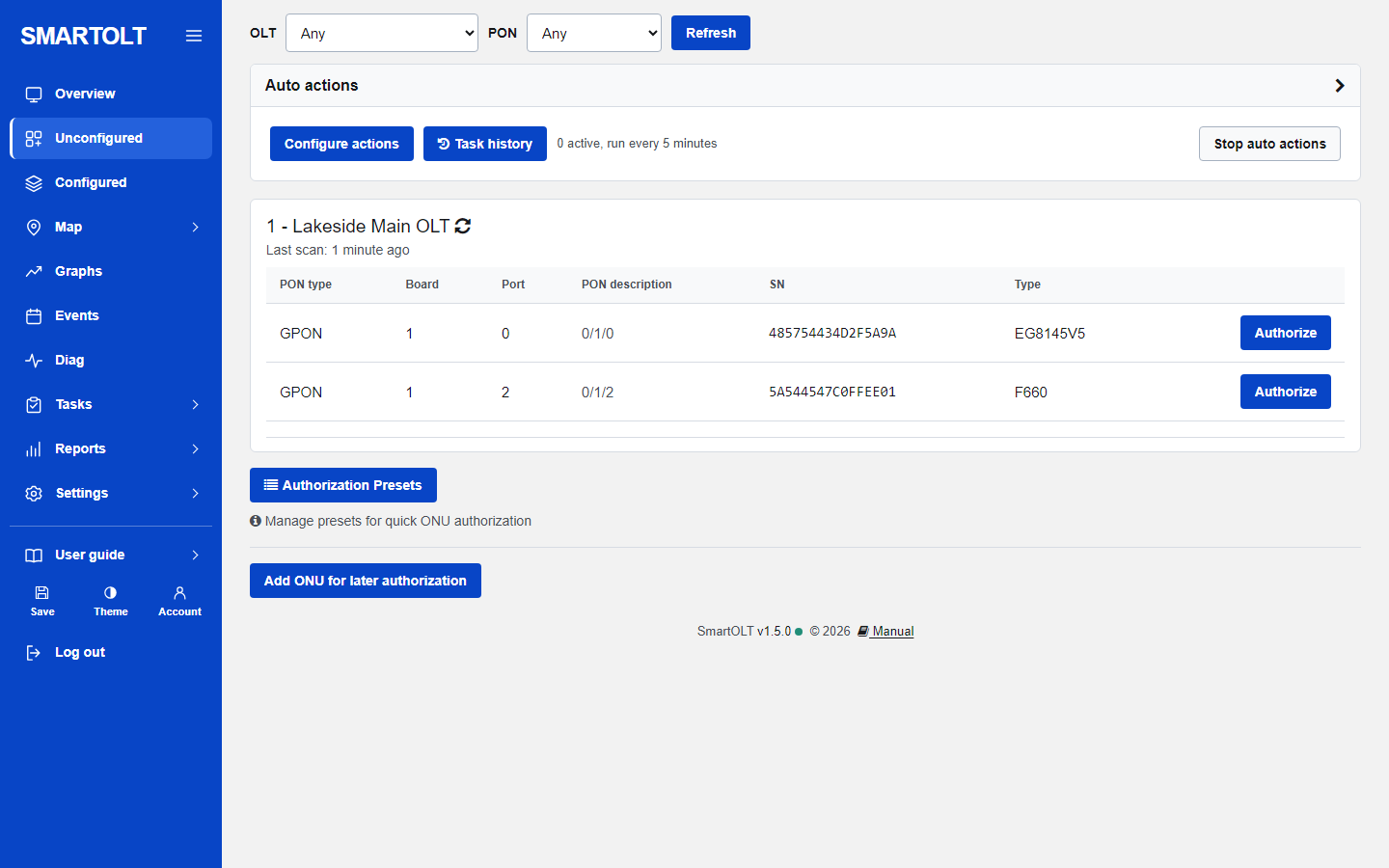
The Unconfigured page
Click Unconfigured in the menu. You see one box for each OLT, with the OLT number and name, and a line Last scan that tells you how old the list is.
The panel reads every OLT every 5 minutes, so the page opens at once with the result of the last read. To ask the OLT now:
- Press the green Refresh button at the top to scan the OLTs shown.
- Or click the small refresh icon next to one OLT name (Scan this OLT now).
Use the OLT and PON lists at the top to show only one OLT or one PON port.
Each waiting ONU is one row with these columns: PON type (GPON), Board, Port, PON description (frame/board/port, for example 0/1/0), SN, Type (the model the OLT reports) and an Authorize button.
If an OLT has nothing waiting you see No unconfigured ONUs found. If the panel cannot reach the OLT you see a red line starting with Cannot connect. See Connection troubleshooting.
New, moved and resync
The Waiting authorization card on the dashboard splits its number in three: new, moved and resync.
- New: a serial number the panel has never seen authorized.
- Moved: a serial number that was authorized before and is waiting again. This happens when an ONU was deleted, moved to another PON port, or replaced. On the Unconfigured page these rows carry an orange Authorized before badge next to the serial.
- Resync: ONUs that are already authorized, but whose setup on the OLT no longer matches what the panel saved. They are not on the Unconfigured page. Find them under Reports, Find config mismatches (DB vs OLT).
A blue Added for later badge means the serial is in your list for later authorization (see the last section).
Authorize an ONU
- Open Unconfigured and press Refresh if the ONU is not listed yet.
- Check the serial number against the label on the ONU, then press Authorize on its row. The Authorize ONU form opens.
- If you have presets, pick one in Preset. It fills several fields for you. See Presets and auto actions.
- Check the fields described below, then press Save.
- You should land on the ONU page with the message ONU authorized as ONU ID and a number. The ONU comes online within a minute.
- When you have finished authorizing, press Save in the menu (Save OLT configuration) so the OLT keeps the new ONUs after a restart.
If the form shows The profiles of this OLT are not read yet, open Settings, OLTs and press Refresh on that OLT first.
If the ONU was authorized by somebody else in the meantime, you are sent back with the message That ONU is no longer waiting on this OLT.
The Authorize form, field by field
| Field | What it does |
|---|---|
| Preset | Shown only when at least one preset exists. Fills ONU type, profiles, mode, VLAN, speed, zone, sector and GEM port. |
| OLT, PON type, Channel, Board, Port, SN | Read only. They show where the OLT found the ONU, with its model and vendor after the serial. |
| ONU type | The model record from Settings, ONU types. The panel selects it for you when a type name matches the model the OLT reports. |
| Line-profile, Service-profile | The profiles that exist on this OLT, shown as number and name. The panel selects the ones that most ONUs on this OLT already use. Change them only if this ONU needs different profiles. |
| Service template | Bridging or Routing. See the next section. |
| User VLAN-ID | The internet VLAN, 1 to 4094. The panel suggests the VLAN most ONUs on this OLT use. If you leave it empty, the ONU is authorized without internet. |
| Additional VLANs | Other VLANs this ONU carries next to its internet, for example management or TV, separated by commas. At most 8. The panel fills this in from what the other ONUs on the same internet VLAN already carry. Clear the field for internet only. No speed limit is put on these VLANs. |
| Zone, Sector | Labels for grouping. They change nothing on the OLT. See Zones, sectors and splitters. |
| Splitter, Splitter port | The splitter box the drop cable plugs into, and the port number on it (1 to 64). |
| Speed profile | The download and upload limit. Unlimited means no limit. A speed profile needs a User VLAN-ID. |
| Name | The ONU description, also written on the OLT. Up to 60 characters. Only letters, digits and _ . @ - are kept, and spaces become underscores. If you leave it empty the panel uses onu_ plus the last 8 characters of the serial. |
| Address or comment | Free text, kept in the panel only. |
| ONU external ID | Your own customer or contract number, kept in the panel only. You can search by it later. |
| Advanced, GEM port | The GEM port for the service, 1 to 4095. The default is 1. Change it only if you know that your OLT setup needs another GEM port. |
| Use GPS | Tick it to show Latitude and Longitude. Press Get current location to use your device position, or click the small map. The ONU then appears on the ONUs map. |
Bridging or Routing
Bridging sets the internet VLAN as the native VLAN on Ethernet port 1 of the ONU. A router or computer plugged into that port gets untagged traffic from the VLAN.
Routing records that the ONU works as a router. The panel creates the service on the OLT, but it does not create the WAN connection, WiFi or DHCP settings of the router. Those must come from the ONU profile on the OLT, from the ONU's own web page, or from your ACS.
The service template cannot be switched later from the panel. Choose it carefully. To change it you must set up the ONU's WAN and LAN on the ONU itself or through an ACS.
What the panel configures on the OLT
When you press Save, the panel logs in to the OLT and does this, in order:
- If a speed profile is chosen, finds or creates the matching traffic tables. See Speed profiles and ONU types.
- Adds the ONU on the PON port by serial number, with the line profile, the service profile and the name. The OLT gives it an ONU ID.
- Reads the ONU back and checks that the serial matches.
- Creates one service port for the internet VLAN on the chosen GEM port, with the speed limit if there is one.
- For Bridging, sets the native VLAN on Ethernet port 1.
- Creates one more service port for each additional VLAN, on the same GEM port, with no speed limit.
If the service cannot be created, the panel removes the ONU from the OLT again and shows Not authorized with the reason. You can then correct the form and try again.
These changes are in the running configuration of the OLT. Press Save in the menu to write them to the OLT's memory.
Add ONU for later authorization
You can enter an ONU before it is installed. When an OLT sees that serial waiting, the panel authorizes it by itself with your details, within 5 minutes.
- On Unconfigured, press Add ONU for later authorization at the bottom.
- Type the serial number in SN, for example
HWTC1A2B3C4D. - Optional: choose an OLT, a Board and a Port. If you set them, the ONU is authorized only when it shows up there. Any OLT accepts it anywhere.
- Fill in the rest as on the Authorize form: preset, ONU type, service template, VLAN, zone, splitter, speed profile, name and location. Check Service template before you save.
- Press Save. You should see Saved. The ONU is authorized with these details as soon as an OLT sees it.
The line profile and service profile are not on this form. The panel takes them from the preset, or uses the ones most ONUs on that OLT use. Additional VLANs follow what the other ONUs on the same internet VLAN carry.
Saved serials are listed under Added for later authorization on the Unconfigured page. If an automatic authorization fails, the reason is shown in red in that list and the panel waits one hour before it tries that serial again. Saving the same serial again replaces its details. To cancel, press the red trash button on its row.
A serial that is already authorized is refused with That ONU is already authorized.
Still stuck? Write to us and include your site name. No panel yet? Create one for free.