Find and manage ONUs
The Configured page lists every ONU that is authorized on your OLTs. This includes ONUs that were authorized on the OLT before you added it to the panel. The list is updated when the panel reads each OLT, every 5 minutes.
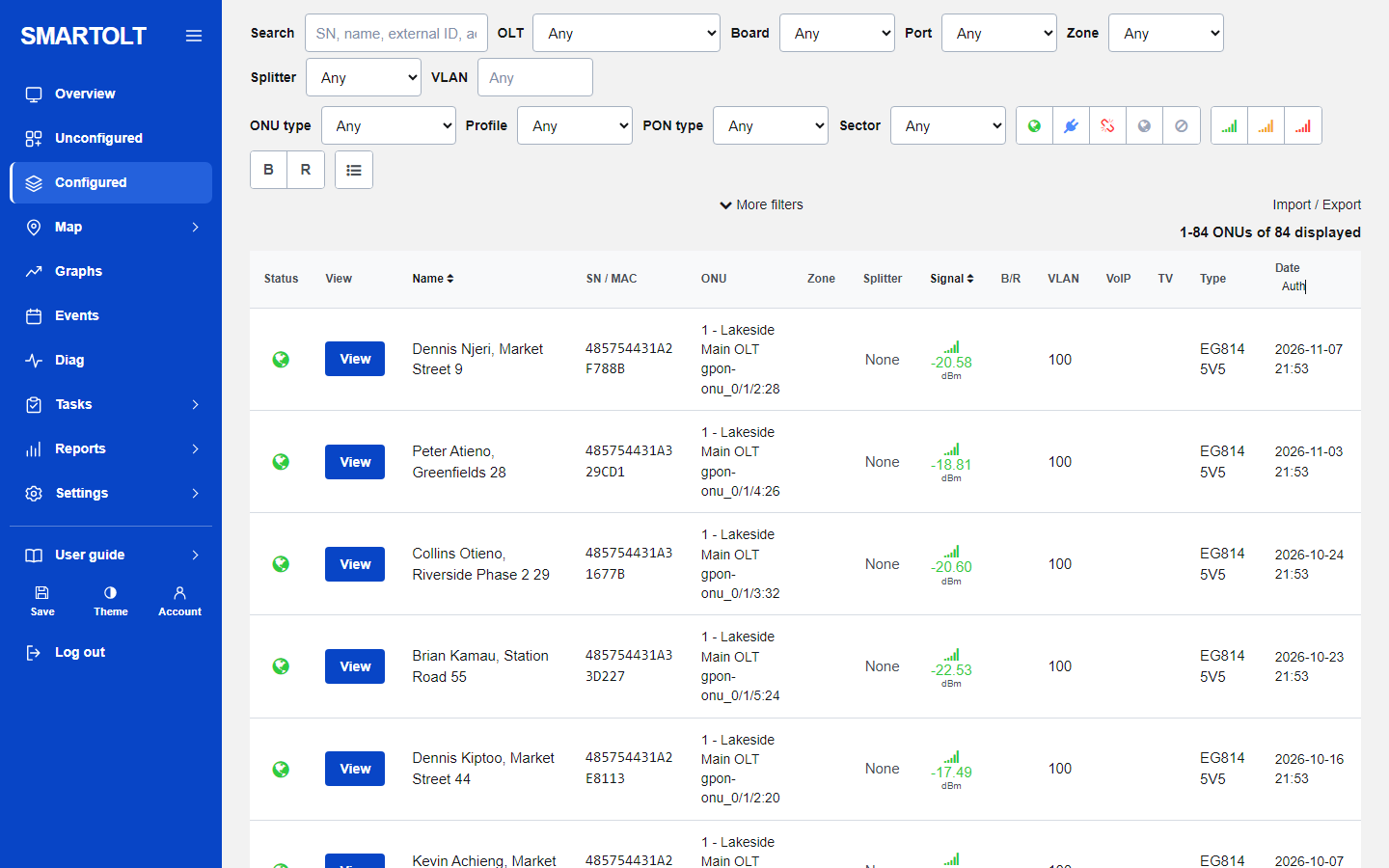
Search
Type in the Search box and press Enter. The search looks in four fields: the serial number, the name, the ONU external ID and the address or comment. Part of a value is enough, for example the last four characters of a serial.
Filters
Each list at the top narrows the result as soon as you choose a value. You can combine them.
| Filter | Shows only ONUs |
|---|---|
| OLT | On that OLT. |
| Board | On that board (slot) number. |
| Port | On that PON port number, 0 to 15. |
| Zone | With that zone. |
| Splitter | Assigned to that splitter. |
| VLAN | With that saved internet VLAN. Type the number and press Enter. |
| ONU type | With that ONU type. |
| Profile | With that speed profile. |
| PON type | GPON is the only type today. |
| Sector | With that sector. |
Click More filters to show the PON port box. Type a full port as frame/board/port, for example 0/1/0, and press Filter.
When any filter is active, a Reset filters link appears on the right. Click it to see all ONUs again. The Import / Export link next to it opens the export page with the same filters, so you can download exactly the ONUs you see.
Status icons
The first group of icons filters by status. Click an icon to turn the filter on, click it again to turn it off. Only one status can be active at a time. The same icons appear in the Status column of each row.
| Icon | Name | Meaning |
|---|---|---|
| Globe, online colour | Online | The ONU is working. |
| Plug | Power fail | The ONU reported that it lost power before it went down. |
| Broken chain | Signal loss (LOS) | The light to the ONU is lost. This is usually a cut, bent or unplugged fiber. |
| Globe, offline colour | Offline, cause not known | The ONU is offline and the OLT gave no power or signal cause. |
| Ban sign | Disabled | The ONU was disabled on purpose. It stays authorized but gets no service. |
Hold the mouse over an icon to read its name.
Signal icons
The second group filters by the optical power the ONU receives (ONU Rx).
| Filter | ONU Rx level |
|---|---|
| Good signal | From -25 dBm up to -8 dBm. |
| Signal warning | Below -25 dBm, down to -27 dBm. |
| Signal critical | Below -27 dBm, or above -8 dBm (too much light). |
An offline ONU has no signal value, so it does not match any signal filter. For how to read and fix these levels, see the Optical signal guide.
B, R and the list icon
- B (Bridge mode) and R (Router mode) filter by the service template saved in the panel. This is the saved choice, not a live check of the ONU.
- The list icon (Select ONUs for bulk actions) adds a tick box to every row. See Bulk actions.
What each column means
| Column | Content |
|---|---|
| Status | The status icon from the last read of the OLT. |
| View | A button that opens the ONU page. |
| Name | The ONU description, the same text as on the OLT. |
| SN / MAC | The serial number. |
| ONU | The OLT number and name, and under it the position, for example gpon-onu_0/1/0:3. This reads frame 0, board 1, port 0, ONU ID 3. |
| Zone | The zone label, if set. |
| Splitter | The splitter name, with the splitter port number under it. Click the name to list all ONUs on that splitter. None means no splitter is assigned. |
| Signal | ONU Rx in dBm, coloured good, warning or critical. A dash means no value, for example for an offline ONU. |
| B/R | Bridge or Router, the saved service template. Empty for ONUs that were not set up through the panel. |
| VLAN | The saved internet VLAN. |
| VoIP, TV | Not filled in today. |
| Type | The ONU type. If no type is set, the model the OLT reports. |
| Date | When the ONU was authorized through the panel. Before SmartOLT means it was already on the OLT when the panel first read it. |
Sorting and pages
- By default the newest authorizations are on top.
- Click the Auth badge under Date to switch between newest first and oldest first.
- Click Name to sort by name, A to Z.
- Click Signal to sort by signal with the weakest ONUs first. This is a fast way to find drops that need cleaning or repair.
The list shows 100 ONUs per page. The line above the table tells you which rows you see, for example 1-100 ONUs of 846 displayed. Page links are under the table.
Open an ONU
Press View on a row. The ONU page opens and reads the ONU live from the OLT. See The ONU page for everything you can do there.
If the list is empty and you see Add your OLT first under Settings, OLTs, follow Add an OLT. If you see No ONUs match, click Reset filters.
Looking for an ONU that is plugged in but not in this list? It is probably not authorized yet. Check the Unconfigured page. See Authorize a new ONU.
Still stuck? Write to us and include your site name. No panel yet? Create one for free.