Getting started
This page takes you from sign up to your first connected OLT. Choose Huawei, ZTE or V-SOL in the OLT form. Authorization is available on the supported Huawei MA5600T models; new family drivers start read-only. See Supported OLTs before connecting.
Before you start
Have these ready:
- An email address you can read now. Each email address can have one panel.
- The Telnet username and password of your OLT. The user must be allowed to configure ONUs.
- Either a public IP address (or port forward) that reaches the OLT's Telnet port, or a MikroTik router on the same network as the OLT. With a MikroTik you do not need a public address.
1. Sign up
- Open /register.
- Fill in Company name (2 to 64 characters), Email address and Site name.
- Press Send my confirmation email. You should see a page titled Check your inbox.
The site name becomes your panel address. If you choose yourname, your panel is at yourname.freesmartolt.com. The rules for the site name are:
- 3 to 30 characters.
- Lowercase letters, numbers and hyphens only.
- It must start and end with a letter or a number, and it cannot have two hyphens in a row.
- Some names are reserved, and a name another ISP already uses cannot be taken again. The form tells you if you must choose another.
2. Confirm your email and choose a password
- Open the email with the subject that starts with Confirm your. It can take a minute or two to arrive. If you do not see it, look in your spam folder.
- Press Confirm and create my panel. The link works for 24 hours.
- On the page Choose your password, type a password two times. It must be at least 8 characters. Very easy passwords are refused.
- Press Create my panel and wait. Building the panel takes about a minute.
- When you see Your panel is ready, press Open my panel. Keep the address shown on that page.
Nothing is created until you open the link and choose a password. If the link is older than 24 hours you see This link is not valid. Sign up again with the same details.
3. Sign in
- Go to your panel address, for example
https://yourname.freesmartolt.com. You can also type your site name at /login. - In Username type
admin. In Password type the password you chose. - Press Sign in. You should see the Overview page.
The username is always admin. More about the account is in Your account and password.
4. Add your OLT
- In the menu open Settings, then OLTs. On a new panel the Add OLT form opens by itself. Later, press the green Add OLT button.
- Type a Name, for example
Main OLT. - Choose the Connection:
- Through the SmartOLT VPN (no public IP needed) if the OLT only has a private address. Enter the OLT's own IP in your network.
- Directly, on a public IP or port forward if the OLT's Telnet port can be reached from the internet.
- Enter the OLT telnet username and OLT telnet password.
- Press Save.
Every field is explained in Add an OLT. If you chose the VPN, the panel now shows commands to paste into your MikroTik. Follow Connect an OLT through OpenVPN and a MikroTik router.
5. Wait for the first read
With a direct connection the panel logs in to the OLT as soon as you press Save. On a big OLT this takes up to a minute. When it works you see a green message such as OLT saved and read: 240 ONUs found, 231 online.
With a VPN connection the first read happens after the MikroTik tunnel is up. Open the OLT page and press Refresh, or wait for the automatic read.
After that the panel reads the OLT by itself every 5 minutes: boards, profiles, VLANs, every ONU with its status and signal, and the ONUs waiting for authorization. ONUs that were already authorized on the OLT appear under Configured without any work from you.
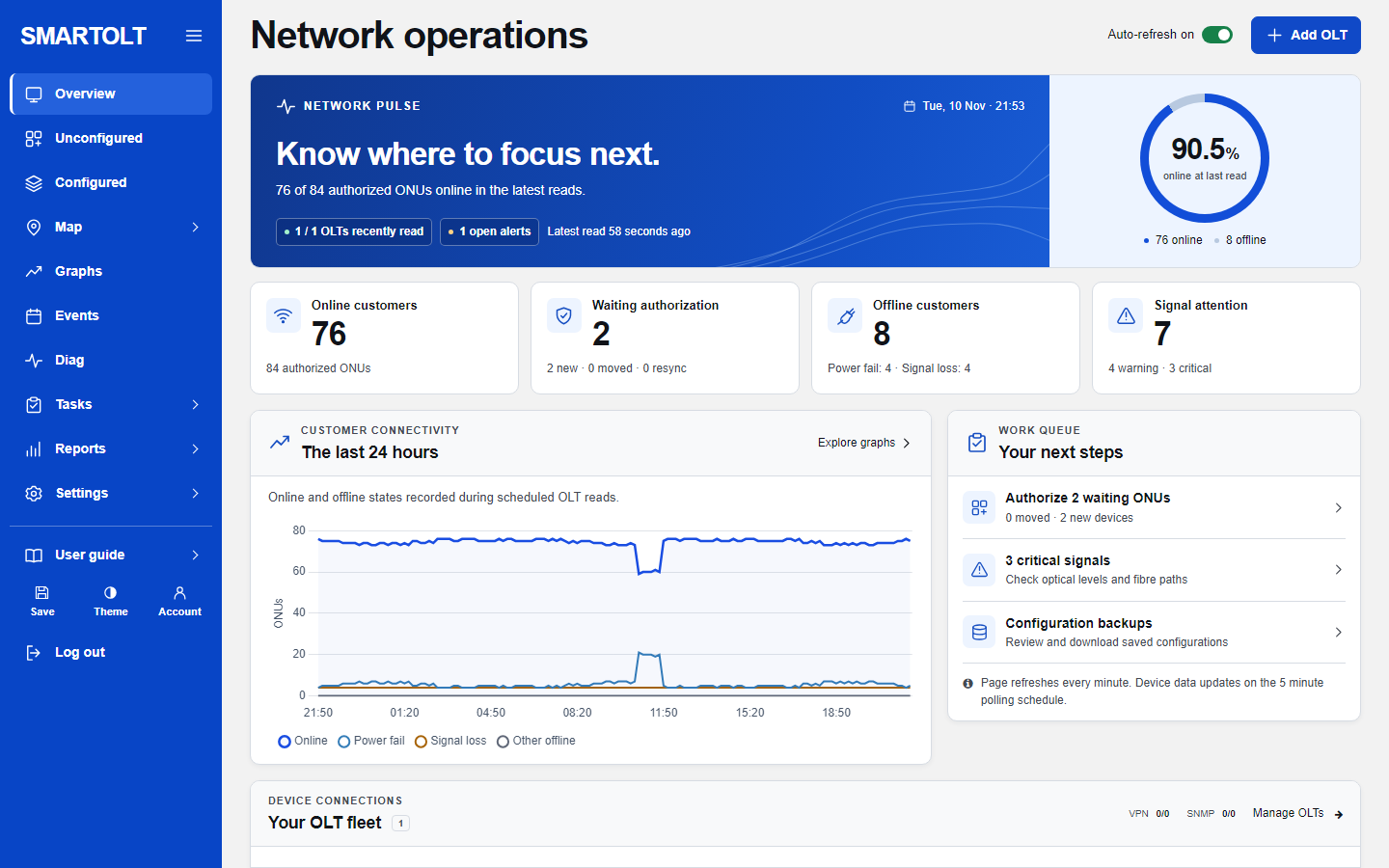
6. Authorize your first ONU
- Open Unconfigured in the menu. It lists the ONUs that are plugged in but not authorized.
- If a new ONU is missing, press Refresh to ask the OLT now.
- Press Authorize on the ONU's row.
- Fill in the form: type, mode, VLAN, speed, zone, splitter, name and location. Then press Save.
- After you authorize ONUs, press Save in the menu (Save OLT configuration). This writes the running configuration to the OLT's memory, so the ONUs are still there after the OLT restarts.
Zones, splitters, ONU types and speed profiles are under Settings. They are labels and limits that you pick when you authorize. Zones and splitters change nothing on the OLT. The full procedure is in Authorize an ONU.
If something goes wrong
- No confirmation email. Check the spam folder and the spelling of the address, then sign up again. There is a limit on how many emails go to one address per day.
- "The site name ... is already taken." Choose another site name.
- You already have a panel with this email. The form still shows Check your inbox, and the email tells you the address of your existing panel.
- "The OLT was saved, but SmartOLT could not read it" or a red banner on the OLT page. See When an OLT will not connect.
- Forgotten password. Use /reset.
Next steps
- Manage ONUs and the ONU page
- Presets and auto actions, to authorize faster
- Reading optical signal levels
- The dashboard and Alarms and events
- Zones and splitters and Speed profiles and ONU types
Still stuck? Write to us and include your site name. No panel yet? Create one for free.