The ONU page
The ONU page shows one ONU and lets you change it. To open it, press View on a row of the Configured list. The browser tab is titled View ONU.
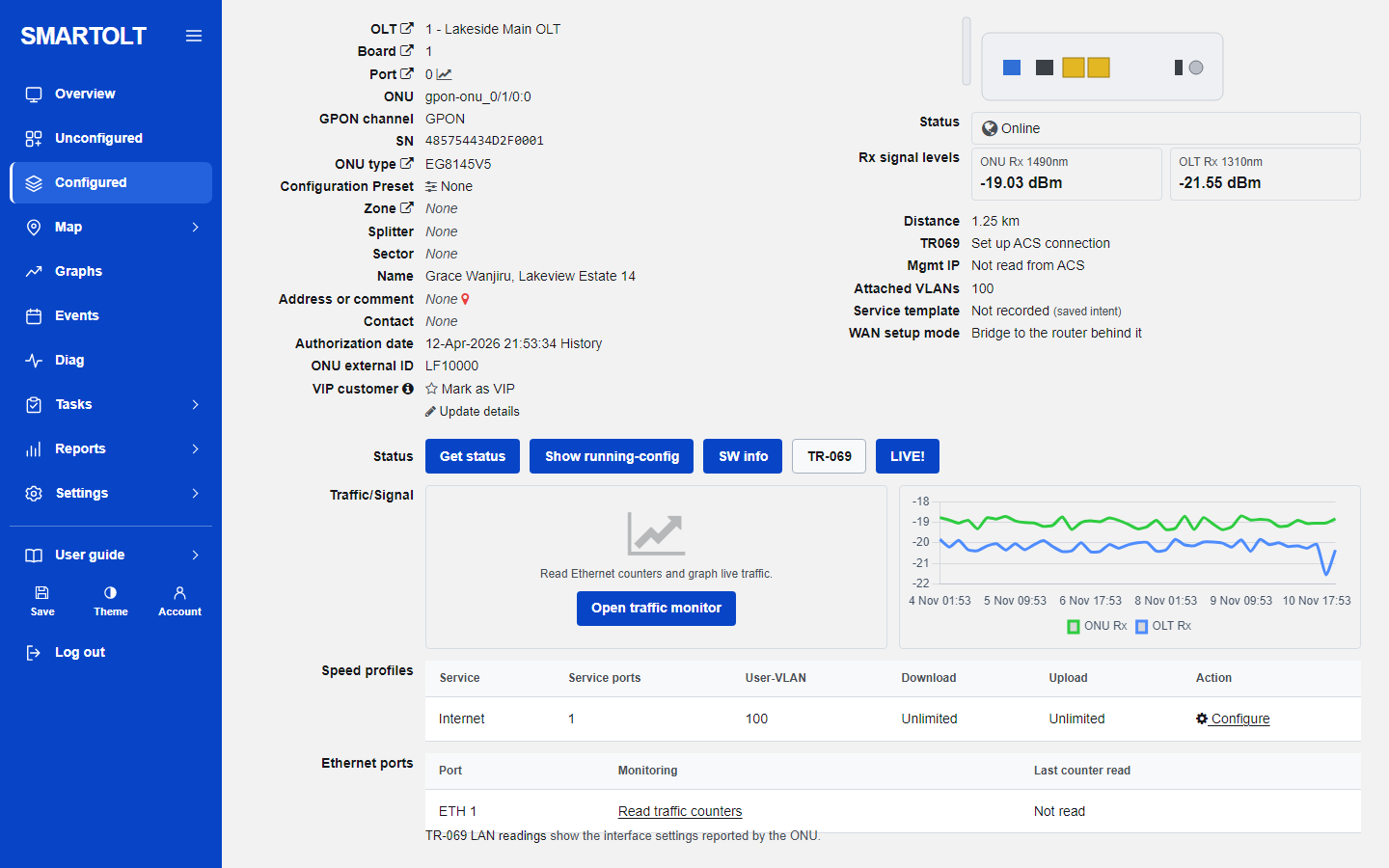
Identity fields
The left side lists what the panel knows about the ONU.
| Field | Meaning |
|---|---|
| OLT, Board, Port | Where the ONU is connected. The small icons open the OLT, its cards, the list of ONUs on the same PON port, and the graph of that port. |
| ONU | The position, for example gpon-onu_0/1/0:3: frame 0, board 1, port 0, ONU ID 3. |
| SN | The serial number. |
| ONU type | The ONU type. If none is set, the model the OLT reports. |
| Configuration Preset | The preset used when it was authorized, or None. |
| Zone, Splitter, Sector | Your grouping labels and the splitter port. |
| Name | The ONU description, the same as on the OLT. |
| Address or comment | Free text. When the ONU has a location, the red map pin opens it on OpenStreetMap. |
| Contact | A phone number or name. |
| Authorization date | When it was authorized through the panel, or Before SmartOLT. The History link is explained below. |
| ONU external ID | Your own customer number. If you did not set one, the serial is shown. |
| VIP customer | Click Mark as VIP to put a star on this ONU. Click VIP to remove it. Nothing changes on the OLT. |
To edit these, click Update details. In the Update ONU details window you can change the name, external ID, ONU type, contact, zone, sector, splitter, splitter port, address and GPS position. Get current location fills the GPS fields from your device. Press Save. Only the Name is also changed on the OLT. The rest is kept in the panel.
Status, signal and distance
When the page opens, the panel reads this ONU live from the OLT and fills the Status box. If the ONU is offline, the cause reported by the OLT is shown in brackets. The statuses are the same as on the Configured list: Online, Power fail, Signal loss (LOS), Offline and Disabled.
- Rx signal levels: ONU Rx 1490nm is the light the ONU receives from the OLT. OLT Rx 1310nm is the light the OLT receives from the ONU. Both are in dBm. The ONU Rx value is coloured good, warning or critical. See the Optical signal guide.
- Distance: the fiber distance between OLT and ONU, as measured by the OLT.
- Attached VLANs: the saved internet VLAN.
- Service template: Routing or Bridging with the VLAN. It is marked saved intent because it is the choice saved in the panel, not a live check of the ONU.
- WAN setup mode: tells you if the WAN is set on the ONU's own web page (Routing) or on the router behind it (Bridging).
- TR069 and Mgmt IP: filled from your ACS, see below.
An offline ONU shows a dash for both signal levels.
The buttons: Get status, Show running-config, SW info, TR-069, LIVE!
- Get status reads the ONU from the OLT again and updates the status and signal levels.
- Show running-config shows the configuration lines the OLT holds for this ONU. Press Copy to copy the text.
- SW info shows the version information the OLT reports for the ONU.
- TR-069 opens this ONU's TR-069 page. This needs an ACS to be connected under Settings, VPN & TR069. The ONU is matched to its ACS record by serial number. The page shows the WiFi and LAN readings the ONU reported to the ACS, the connected hosts, and lets you queue a WiFi change or a reboot. Queued requests run when the ONU next contacts the ACS, so check the request history before you assume a change was applied.
- LIVE! reads the ONU every 15 seconds. The button changes to Stop live. Press it again to stop.
In the TR069 row you see Set up ACS connection when no ACS is connected, Find this ONU in ACS when the serial is not linked yet, or View ACS readings with the time of the last Inform.
Signal history and traffic monitor
The Traffic/Signal row has two boxes.
- The signal graph draws ONU Rx and OLT Rx for the last 7 days, with a point about every 15 minutes. On a new ONU you see Signal graph fills in as the OLT is read every 5 minutes until there are enough points.
- Open traffic monitor opens the ONU Ethernet traffic page. Choose an Ethernet port, then press Read counters for one reading, or Start live readings for a reading every 10 seconds with a graph of up and down kbps. Export MAC table downloads the MAC addresses the OLT learned for this ONU as a CSV file. Reading does not change the ONU. The byte counters can reset when equipment restarts, so do not use them as billing totals.
Speed profiles: change VLAN or speed
The Speed profiles table has one row, Internet, with the number of service ports, the User-VLAN, and the Download and Upload limits. Unlimited means no limit.
Changing the VLAN or the speed removes and creates the service port on the OLT. The customer drops for a few seconds. A wrong VLAN leaves the customer without internet until you correct it.
- Click Configure in the Action column. The Configure speed profile window opens.
- Set User VLAN-ID if the VLAN must change.
- In Speed profile choose a profile, Unlimited, or Keep current speed.
- Press Apply on OLT, then Yes. You should see Service settings saved.
The service template is shown but cannot be changed here. If the ONU carries more than one service on the OLT (for example internet plus management or TV), a note lists them. The panel changes only the internet service and leaves the others as they are.
Ethernet ports and CATV
The Ethernet ports table has one row for each port of the ONU type (ETH 1, ETH 2 and so on). Read traffic counters opens the traffic monitor on that port, and Last counter read shows when it was last read. The link TR-069 LAN readings shows the port settings reported through your ACS. The CATV line only tells you if the ONU type supports CATV. The panel does not manage CATV.
Reboot, resync, restore, disable, replace, delete
Every button in this row asks Please confirm before it acts. Before any change, the panel checks that the serial at this position on the OLT is still the same. If it is not, nothing is changed and you are told to refresh the OLT.
All of these actions interrupt the customer. Read the confirmation text before you press Yes.
| Button | What it does | Effect on the customer |
|---|---|---|
| Reboot | Restarts the ONU. | Offline for about two minutes. |
| Resync config | Puts the saved VLAN, GEM port and speed on the OLT again. Use it when the OLT setup was changed by hand. | Drops for a few seconds. |
| Restore defaults | Puts the ONU back to factory settings. It restarts and gets its configuration from the OLT again. | Settings made on the ONU itself, such as WiFi name and password, are lost. |
| Disable ONU | Deactivates the ONU. It stays authorized. The button changes to Enable ONU. | No internet until you enable it. |
| Replace by SN | Puts a new serial in place of the old one. See below. | The old ONU stops working. |
| Delete | Removes the ONU and its service ports from the OLT, and removes it from the panel. | No internet until it is authorized again. |
After changes on the OLT, press Save in the menu so the OLT keeps them after a restart.
Replace by serial number
Use this when a customer's ONU is broken and you install a new one. The new ONU takes the same place, profiles, VLAN and speed.
- Press Replace by SN.
- Type the serial of the new ONU in New SN.
- Press Replace, then Yes.
- You should see Serial changed to and the new serial. Plug in the new ONU. It gets the same settings.
The panel refuses a serial that another authorized ONU already has.
Notes, tickets and history
- Add a note saves a text note on this ONU, for example a visit date. Notes are listed with the user and the time.
- New ticket opens a ticket for this ONU. Its tickets are listed here as Open or Closed. See Tickets and tasks.
- The History link next to the authorization date opens Status history: the last status changes with When, Became and Cause. Use it to see how often a customer drops and why.
Still stuck? Write to us and include your site name. No panel yet? Create one for free.