Graphs and reports
The Graphs page shows how your network changed over time. The Reports menu holds nine reports. This page explains each one and tells you when it is useful.
The Graphs page
Click Graphs in the side menu. Two selectors are at the top:
- OLT: All OLTs or one OLT.
- Period: Last 6 hours, Last 24 hours, Last week or Last month.
Network status
The first graph has four lines: Online, Power Fail, LOS and N/A (offline for another or unknown reason). With All OLTs the numbers of all OLTs are added together. The graph has one point for each 10 minutes.
One graph per PON port
Choose an OLT to see a small graph for each of its PON ports, named for example "PON 0/1/3". Each has two lines: Online and Authorized. When the Online line falls away from the Authorized line, customers on that port went down. Click ONUs on a graph to open the list of ONUs on that port.
Graph data comes from the reads the panel makes every 5 minutes. A graph needs at least two reads. Graph points are kept for 30 days. If an OLT could not be read for some time, its graph has a gap for that time.
The reports at a glance
| Report | Use it to | Extra data needed |
|---|---|---|
| Authorizations | See who authorized which ONU and when. | None |
| Export | Download your ONU list as a CSV file. | None |
| Import | Update ONU details from a CSV file. | A CSV file |
| Ethernet traffic | See the last traffic readings of ONU Ethernet ports. | You must read the Ethernet counters of an ONU first |
| WiFi signal | See WiFi values the ONUs reported. | A TR-069 ACS connection |
| ONU status changes | See which ONUs went offline or came back, and why. | None |
| PON occupancy | See how full each PON port is. | None. Splitter columns need splitters set on the ONUs |
| Splitter check | Find ONUs without a splitter and mistakes in splitter data. | Splitters, and coordinates for the distance check |
| Find config mismatches (DB vs OLT) | Find ONUs whose setup on the OLT differs from the saved one. | None |
Authorizations
A list of every ONU authorized through the panel, newest first. Columns: User, SN / MAC, Name, PON and Date. The user is the person who authorized the ONU, or "Auto action" when an auto action did it. The name shows "Deleted" if the ONU was removed later.
Filter by Search (serial number), User, and the From and To dates. Click Export to download the list as CSV. Use this report to count installations per technician or per period.
Export and Import
Export downloads your ONUs as a CSV file that opens in Excel or Google Sheets. Choose an OLT, Board, Port or Zone to export only a part, then click Export ONUs. Tick Include ONU hardware versions to add a hardware column. The file has the name, serial number, ONU type, OLT, PON port, status, down cause, signal, distance, VLAN, speed, mode, zone, sector, splitter, address and coordinates of each ONU. The box Export History - Last 7 days shows who exported and how many ONUs.
Import updates ONU details from a CSV file.
- Make a file with Export and edit it, or build your own. The first row must name the columns.
- Keep the Serial number column. The panel uses it to find each ONU.
- Change any of these columns: Zone, Sector, Splitter, Splitter port, ONU type, External ID, Address, Latitude, Longitude.
- Open Reports, Import, choose the file and click Import.
- Read the result. The panel tells you how many ONUs were updated and which rows were skipped, with the reason.
Zones, sectors, splitters and ONU types are written by name and must exist already. Import changes only details kept in the panel. Names, VLANs and speeds on the OLT are not touched. A serial number that is not authorized on any OLT is skipped.
Ethernet traffic
This report shows the most recent reading of each ONU Ethernet port: Received, Sent, Upload, Download and Last read. Filter with Search, Read within (last 24 hours, week or month), Display unit, OLT and Zone. Click Export CSV to download it.
This report is empty until you read some counters. The panel does not read Ethernet counters by itself. To collect a reading:
- Open an ONU from the Configured list.
- Click Open traffic monitor.
- Choose the Ethernet port and click Read counters. Or click Start live readings to read again every 10 seconds while the page is open.
On the same page, Export MAC table downloads the MAC addresses the OLT learned behind this ONU. Byte counters are totals since the ONU last reset its counters. They are not usage for the period you selected, so do not use them for billing. Readings are kept for 30 days.
WiFi signal
This report shows the WiFi values each ONU reported to your TR-069 ACS, for example the SSID and other WiFi parameters, with the time of each value. It needs an ACS connection. Until you connect one, the page says "Connect your ACS to collect WiFi readings". You set the connection up under Settings, VPN & TR069.
The values are stored readings, not live ones. To read an ONU again, click Open TR-069 on its box and read the device. A missing signal value means the ONU did not report it. It does not mean zero signal. Filter with Search, OLT and Zone, and click Export CSV to download.
ONU status changes
Each time a read finds an ONU in a new status, the panel saves a line. This report lists those lines: Date, ONU, OLT, Became (Online, Power fail, Signal loss (LOS), Offline or Disabled) and Cause as the OLT gave it.
Filter by Period, OLT, Board, Port, Zone and Became. Use it after an outage to see which customers dropped and at what time, or to find an ONU that goes down every day. Status changes are kept for 180 days. Click Export to CSV to download.
PON occupancy
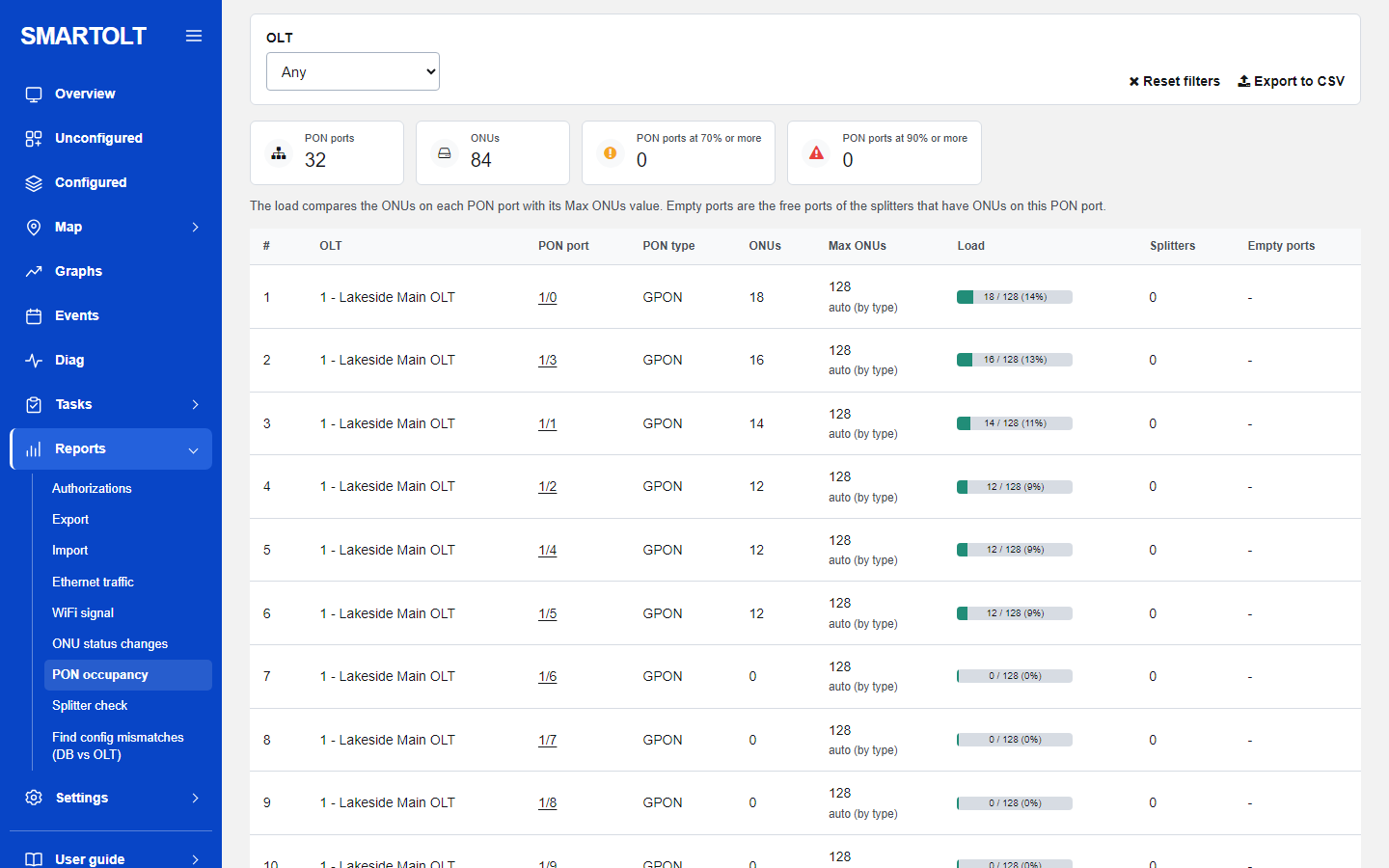
One row per PON port, fullest first. Load compares the ONUs on the port with Max ONUs, which is 128 for a GPON port. The bar is green, orange from 70% and red from 90%. The tiles at the top count your PON ports, your ONUs and the ports at 70% or more and 90% or more.
Splitters is the number of different splitters used by the ONUs on the port. Empty ports is the number of free ports on those splitters. Use this report before you sell in a new area, to see where you still have room.
Splitter check
This report finds mistakes in your splitter data. The list shows two kinds of ONU:
- Without a splitter: the ONU has no splitter set.
- Far from the splitter: the ONU and its splitter both have coordinates, and the distance between them is above the limit. The limit is 300 m. Change it in Far above (m).
Under the list, Splitters with problems shows splitters with more ONUs than ports, a port given to two ONUs, a port number higher than the splitter has, ONUs with no splitter port set, and ONUs from different PON ports on one splitter. The list shows up to 1000 ONUs. Nothing here changes the OLT. Splitters are labels kept in the panel.
Find config mismatches (DB vs OLT)
The panel saves the setup you gave each ONU. This report compares it with what the OLT really has. A mismatch can appear when the OLT restarted without a saved configuration, or when someone changed settings directly on the OLT. The report can find:
- a VLAN or GEM port on the OLT that differs from the saved one,
- a speed on the OLT that differs from the saved speed profile,
- an ONU with no service port on the OLT, so it passes no internet,
- an ONU model that does not fit the saved ONU type.
The page first shows the result of the last 5 minute read. To check now, select the OLTs under Manual Check and click Scan & Compare. To repair one ONU, click Resync on its row. This puts the saved VLAN, GEM port and speed back on the OLT.
Resync drops the customer for a few seconds. Enable for all OLTs turns on a daily automatic resync of every mismatched ONU. Turn it on only if this panel is the place where you manage your ONUs. If another system configures ONUs directly on the OLT, keep it disabled, or its changes will be put back every day.
The number of mismatched ONUs is also shown as resync on the Waiting authorization card of the Overview.
Still stuck? Write to us and include your site name. No panel yet? Create one for free.